

HiBob Marketplace Integration
The HiBob Integration is a one-way integration that allows you to sync employee information like location, salary data, job title, etc.
Before You Start
What You'll Need
- Full admin access to the HiBob account
- Admin/Owner access to your Kamsa Workspace
How to set up Kamsa integration in Bob
Step 1: In Bob
- In the top left, click Bob products -> Marketplace.
- Search for Kamsa.
- Click the Kamsa tile.
- From the left panel, click Install.
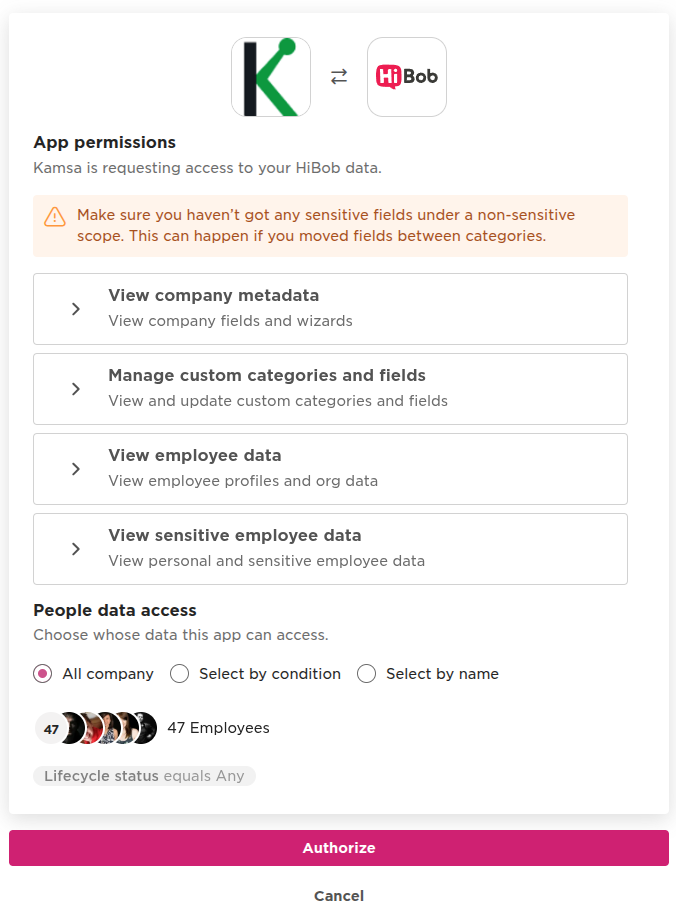
Step 2: Authorize App Permissions and People Data Access
-
Expand each drop-down to confirm you are sharing only the data you intend to share with Kamsa.
-
Next, select whose data Kamsa can access. Options are:
- All company
- Select by condition
- Select by name
-
The number of employees that will be synced appears. To proceed, click Authorize.
After authorization, you are redirected to Kamsa to complete setup.
Step 3: In Kamsa
- If you are not currently logged in to Kamsa, you will be prompted to log in. Otherwise, you will be redirected to your workspace.
- To verify the HiBob--Kamsa integration was successful, click on the Company Profile link in the left navigation bar, and verify hibob_api is present under the HRIS Integration section.
Post-Setup Information
Once you have completed these steps,, email [email protected] to let us know you’ve completed the above steps.
As soon as we’ve confirmed that the data is imported without errors, Kamsa will enable the "Import from HRIS" option so it displays within the Upload Employees button drop-down within your Employee Data page.
