

Kamsa HRIS Integrations Guide for HiBob
Kamsa HRIS Integrations Guide for HiBob
Before You Start
What You'll Need
- Full admin access to the HiBob account
- Admin/Owner access to your Kamsa Workspace
How to set up Kamsa integration in Bob
Step 1: In Bob
- In the top left, click Bob products -> Marketplace.
- Search for Kamsa.
- Click the Kamsa tile.
- From the left panel, click Install.
Step 2: Authorize App Permissions and People Data Access
-
Expand each drop-down to confirm you are sharing only the data you intend to share with Kamsa.
-
Next, select whose data Kamsa can access. Options are:
- All company
- Select by condition
- Select by name
-
The number of employees that will be synced appears. To proceed, click Authorize.
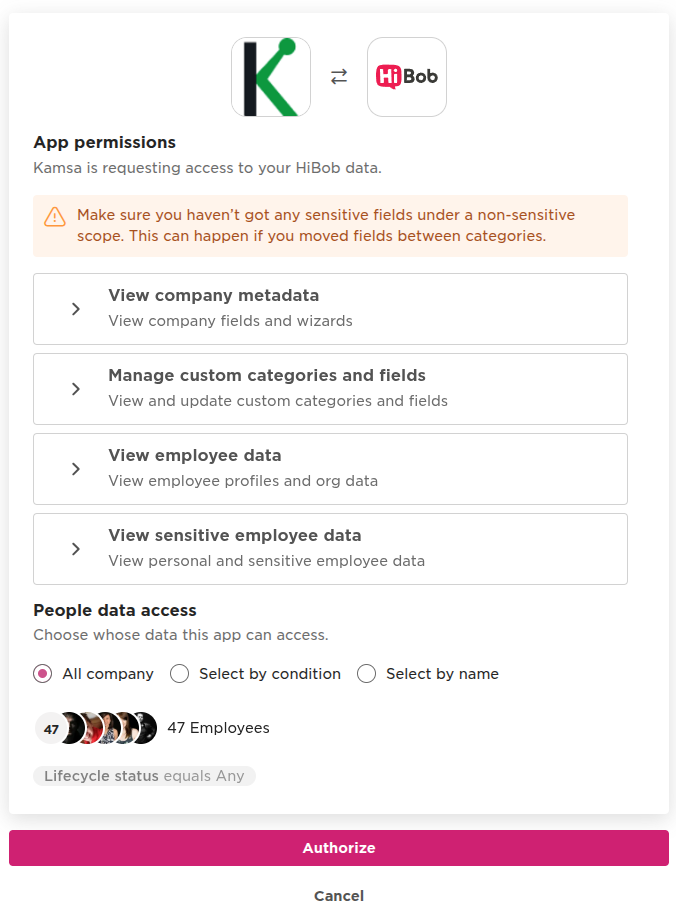
After authorization, you are redirected to Kamsa to complete setup.
Step 3: In Kamsa
- If you are not currently logged in to Kamsa, you will be prompted to log in. Otherwise, you will be redirected to your workspace.
- To verify the HiBob--Kamsa integration was successful, click on the Company Profile link in the left navigation bar, and verify hibob_api is present under the HRIS Integration section.
Summary
Once you have completed the above steps, Kamsa will create a duplicate workspace to test the import of the data.
As soon as we’ve confirmed that the data is imported without errors, Kamsa will enable the Import from HRIS option so it displays within the Upload Employees button drop-down within your Employee Data page.

Field Mapping from HiBob into Kamsa
| Category | Field Name in HiBob | Notes |
|---|---|---|
| Basic Info | Full name | In Kamsa, first and last name are used together for the Employee Name field. |
| Work | Employee ID | Kamsa accepts numeric and alphanumeric characters. Each Employee ID must be a unique identifier. |
| Work | Department | In Kamsa, there are different types of Departments which allows users to retain their Company’s nomenclature while benchmarking to Kamsa’s market data. |
| Work | Job Title | In Kamsa, there are different types of Job Titles which allows users to retain their Company’s nomenclature while benchmarking to Kamsa’s market data. |
| Work | Manager’s ID | Kamsa uses this information primarily to map Managers in Kamsa. This field is required and must exactly match the employee ID of the manager. |
| Work | Start date | There are other options here such as “Work effective date” but Kamsa uses “Start date.” |
| Address | State/Province/Region | Depending on what fields are available. “city, state/region”, “city, country”, “state/region, country”, “country” |
| Address | Country | This is the primary field that Kamsa uses to determine the Market Data Cut for each employee. Here we want the country of the individual represented, not the “Site country” option, for example, because it is important to calibrate the employee’s pay and compa-ratio according to where they live and not where their employee office may be, as these don’t always align. |
| Address | City | While Bob offers various ways to determine an employee’s location, we use the Employee’s Work Location secondarily for clarification of which Market Data Cut we should use. Kamsa will not recognize Site country, Site or Site City. Depending on what fields are available. “city, state/region”, “city, country”, “state/region, country”, “country” |
| Payroll | Base salary | Kamsa accepts Base Salary in the form of an annual or hourly amount. |
| Payroll | Base salary currency code | You’ll see several options here such as “Base Salary (USD)” but we specifically will need the “Base salary currency code.” |
| Payroll | Salary pay period | At this time, Kamsa converts all pay basis directly to salary or hourly. Kamsa will receive yearly, every 6 months, quarterly, monthly, every 2 weeks, per day, per hour, or weekly pay frequencies but convert it to yearly. |
| Payroll | Last salary change date | |
| Payroll | Commission amount | Kamsa will multiply this amount by the employee’s Commission Pay Period |
| Payroll | Commission amount currency | |
| Payroll | Commission pay period | This is used to calculate a yearly target commission amount |
| Payroll | Annual bonus % | Kamsa will accept a % and calculate a yearly bonus amount |
| Employment | Employment type | Kamsa accepts Full-Time, Part-Time, Temporary and Contractor. Kamsa will map the distinct Bob attributes as follows: - Intern, Freelance and Temporary will be imported as Temporary in Kamsa. - Contract and Contractor will be imported as Contractor in Kamsa. - Permanent will be imported as Full-Time |
| Employment | Weekly hours | This is only required if you have PT employees. |
| Employment | FLSA code | Exempt or non exempt |
| Lifecycle | Status | In Kamsa, we have Active, Terminated and Leave of absence. Kamsa will map the Bob attributes as follows: - Hired and Employed will be imported as Active in Kamsa. - Terminated will not be imported in Kamsa. - Garden Leave, Leave, Parental Leave will be imported as Leave of absence in Kamsa. Note: Employees that are previously Active in Kamsa, but then marked as terminated will be updated to Terminated in Kamsa. Historically terminated employees will not be added to Kamsa. |
| Home | Gender | Kamsa accepts Male, Female, and Non-binary as values. |
Note: Kamsa currently imports Employees with 0 salary (you will have to delete those from Kamsa after import if you do not wish them to be in Kamsa).
Kamsa HRIS Integrations Guide — HiBob (v2026-07-23)